
myBookingClaim - The Onboarding Journey
The journey at a glance
Public landing page — register your interest
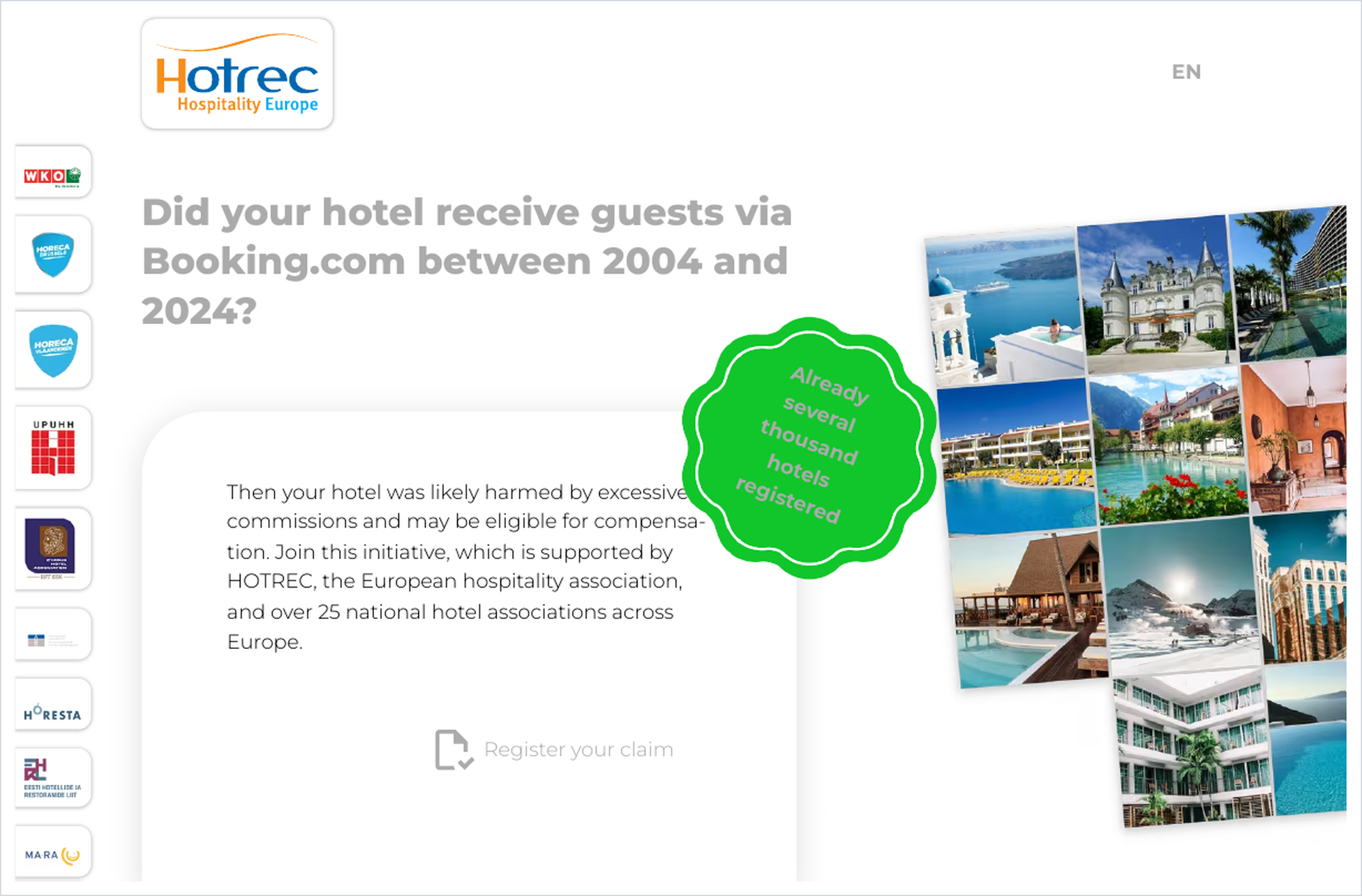
Before any portal account exists, an interested hotelier arrives at the public campaign page at www.mybookingclaim.com/en/. The page explains that hotels which received guests via Booking.com between 2004 and 2024 were likely harmed by excessive commissions and may be eligible for compensation, and that the initiative is backed by HOTREC and more than 25 national hotel associations.
The hotelier clicks Register your claim and submits a short, non-binding expression of interest. There is no obligation, no cost, and no cost-risk — all enforcement and adverse-cost risk is borne by the Stichting.
How the overall process is presented to hoteliers
The five headline steps shown publicly
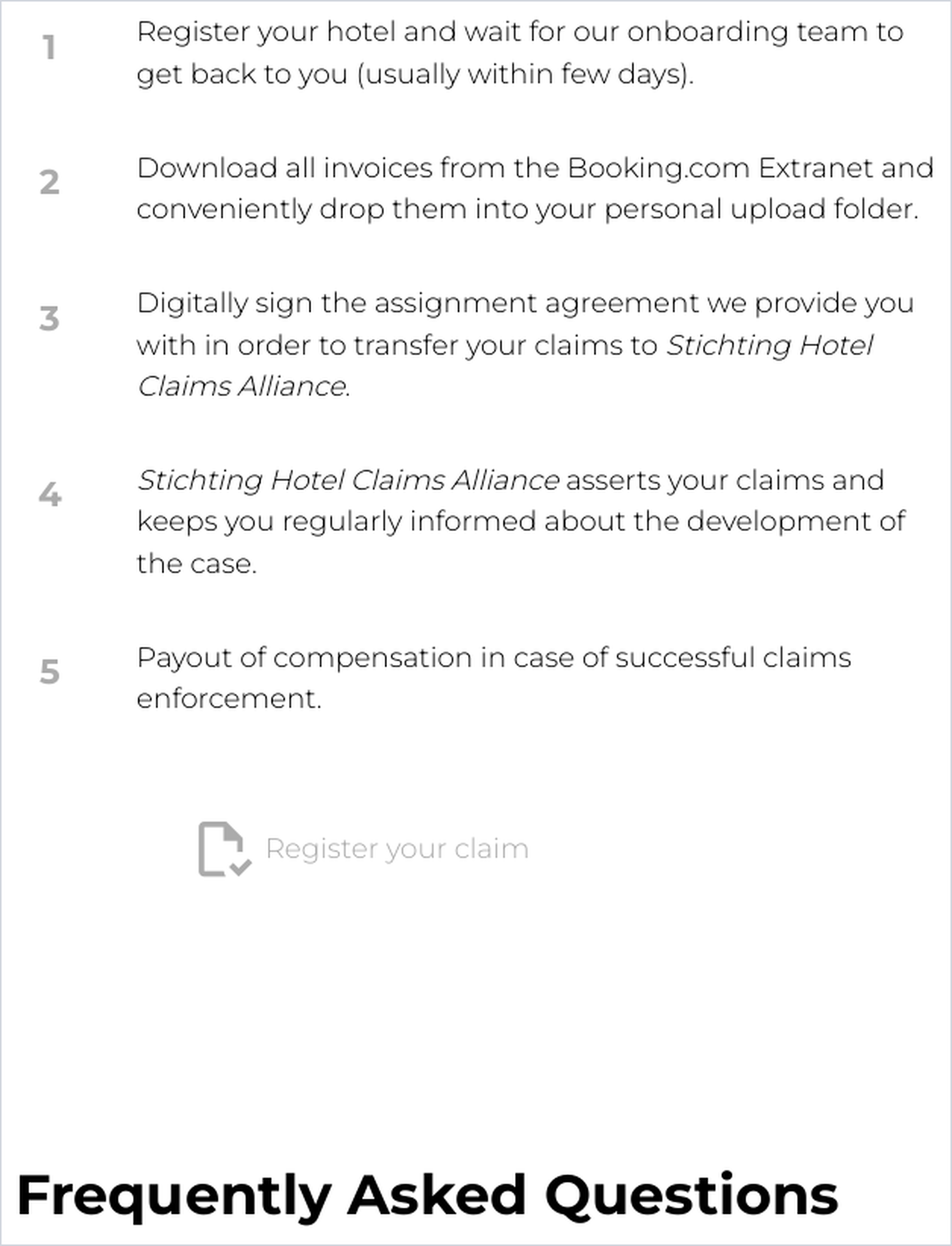
The landing page also sets expectations for the full path ahead: register and wait for the onboarding team to make contact (usually within a few days); download Booking.com invoices and upload them to a personal folder; digitally sign the assignment agreement; the Stichting then asserts the claims and keeps the hotel informed; and finally, payout of compensation in the event of successful enforcement.
Confirmation that the request was received
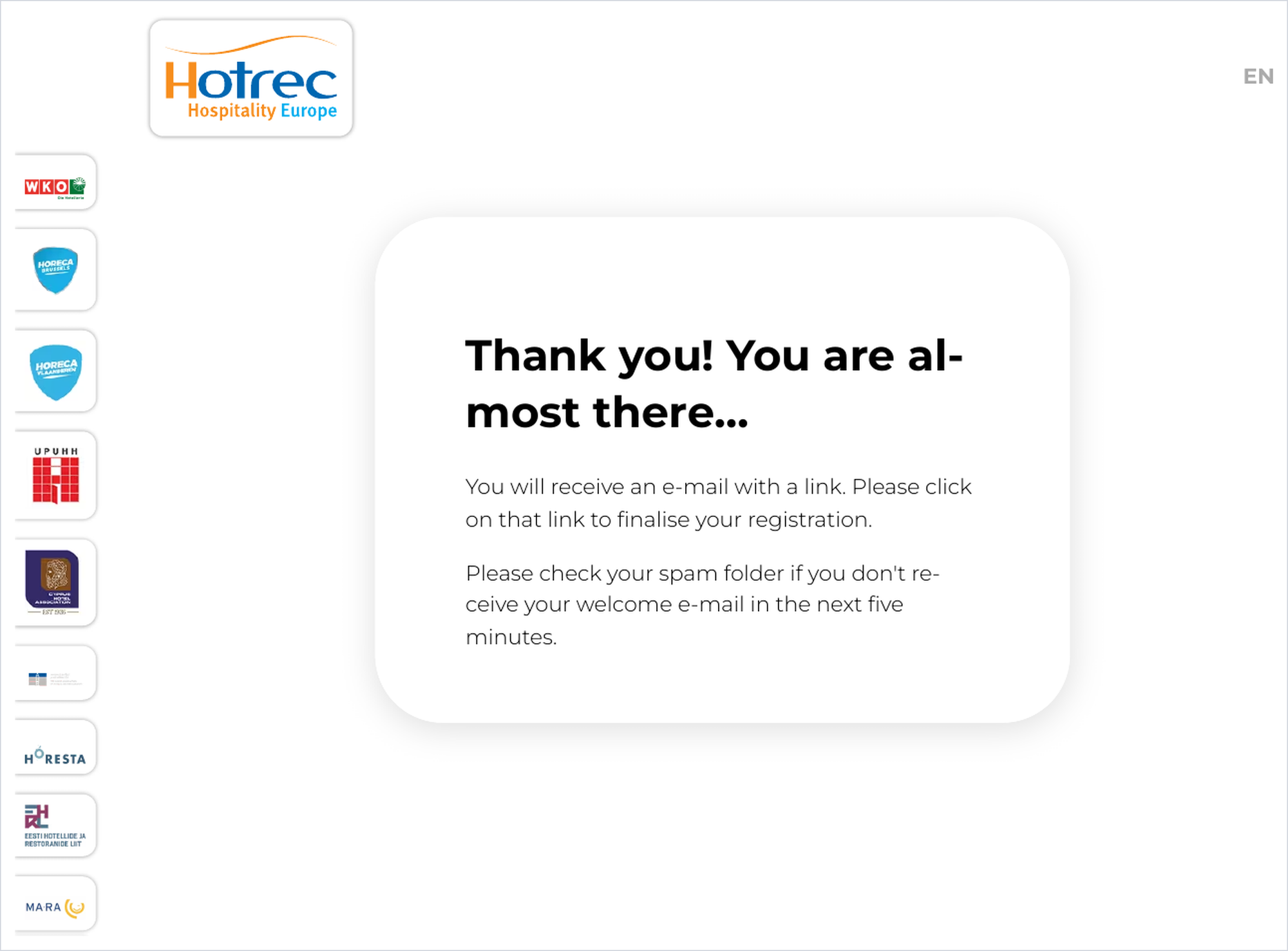
After submitting, the hotelier sees a “You are almost there…” confirmation page. It explains that an email with a link is on its way and must be clicked to finalise the registration, and it advises checking the spam folder if the message does not arrive within a few minutes.
Confirm your email address
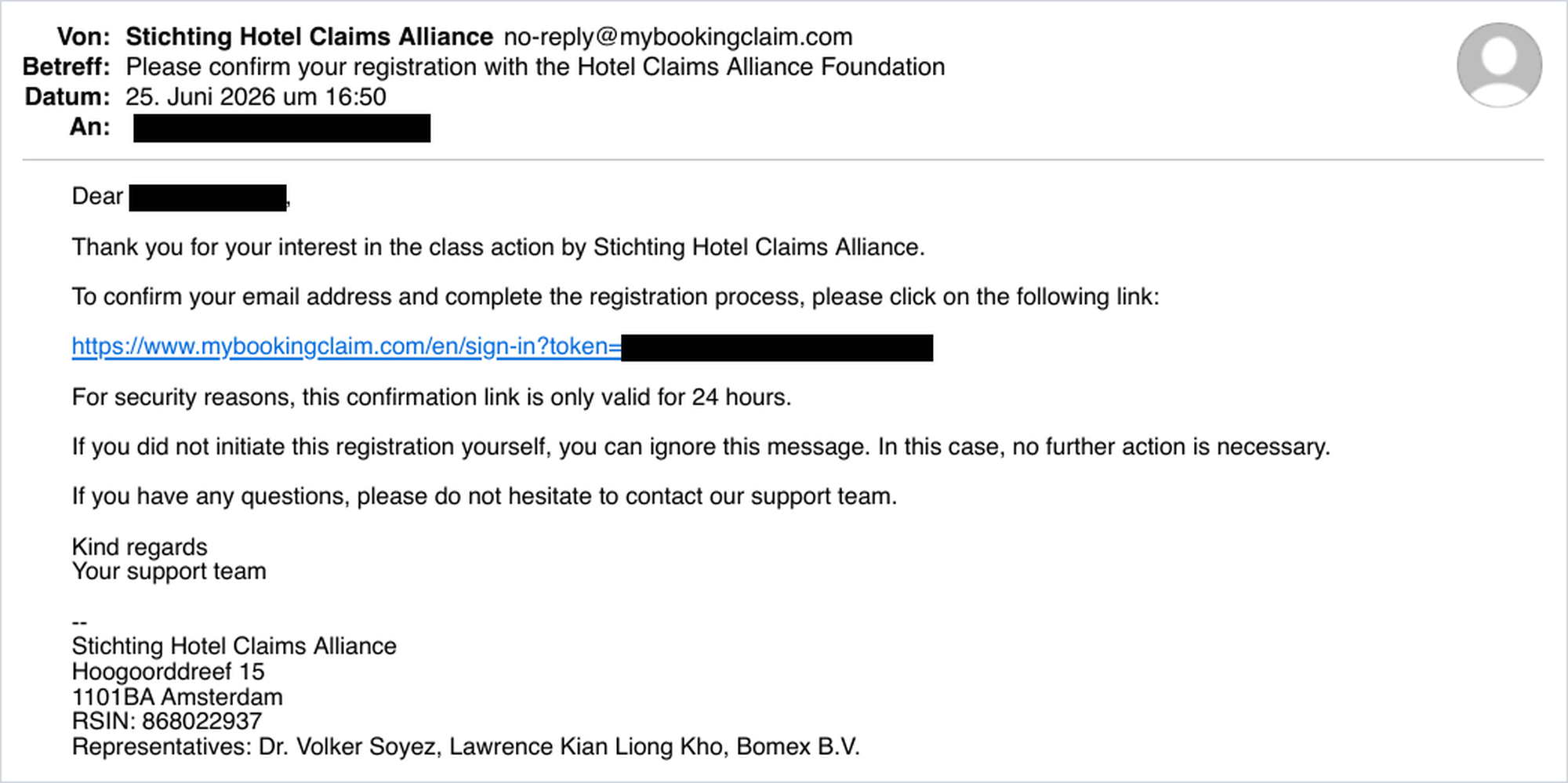
Immediately after registering interest, the hotelier receives an email from the Stichting Hotel Claims Alliance asking them to confirm their email address. Clicking the link verifies that the address belongs to them and completes the registration. For security, the confirmation link is only valid for 24 hours. This double opt-in step ensures all later communication reaches the correct inbox.
Registration completed — account created
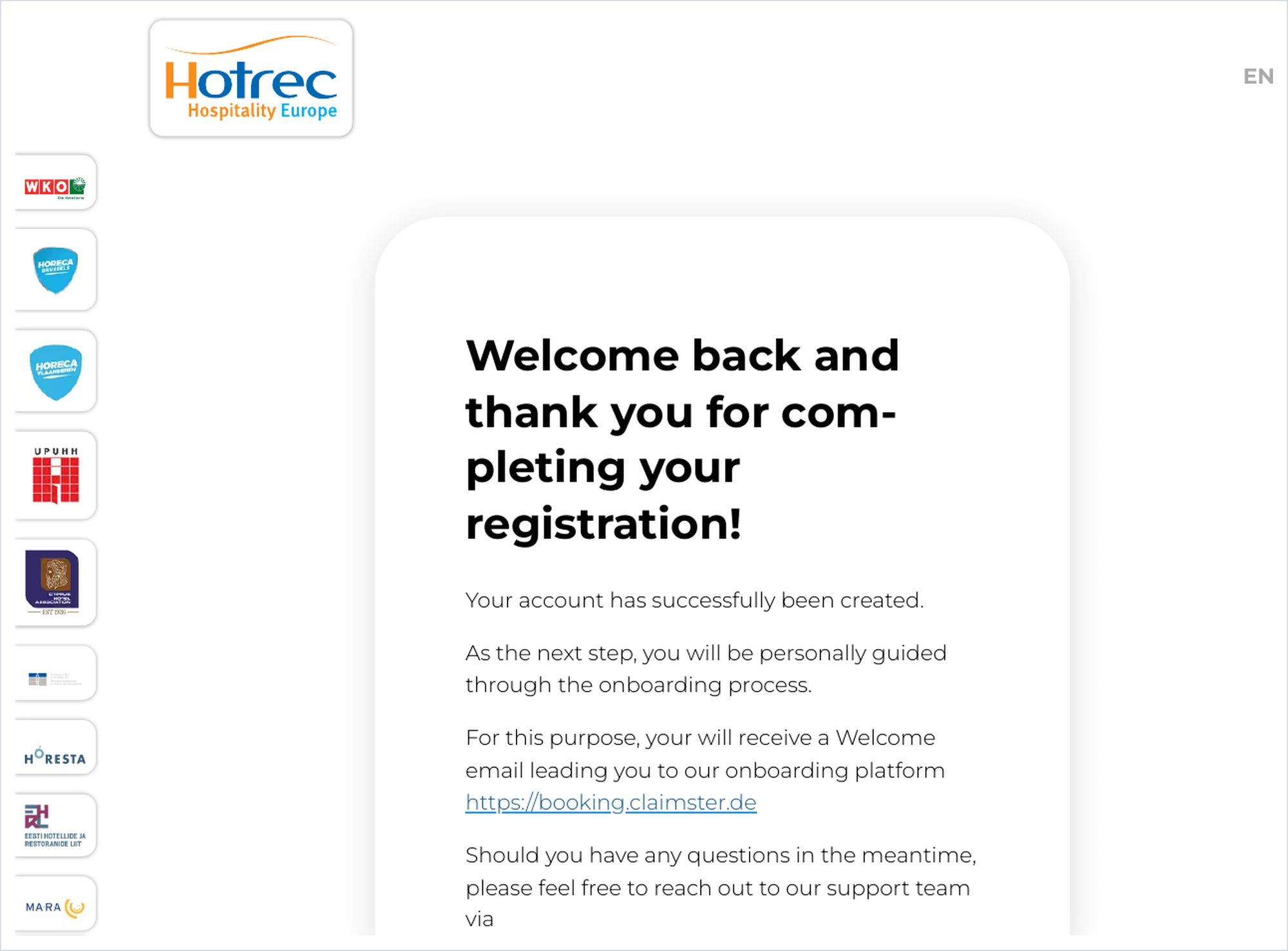
After the link is clicked, the hotelier lands on a “Welcome back — thank you for completing your registration” page confirming that the account has been created. It explains that they will now be guided personally through onboarding, and that a Welcome email will follow with the link to the onboarding platform (booking.claimster.de). Support contacts are provided for any questions in the meantime.
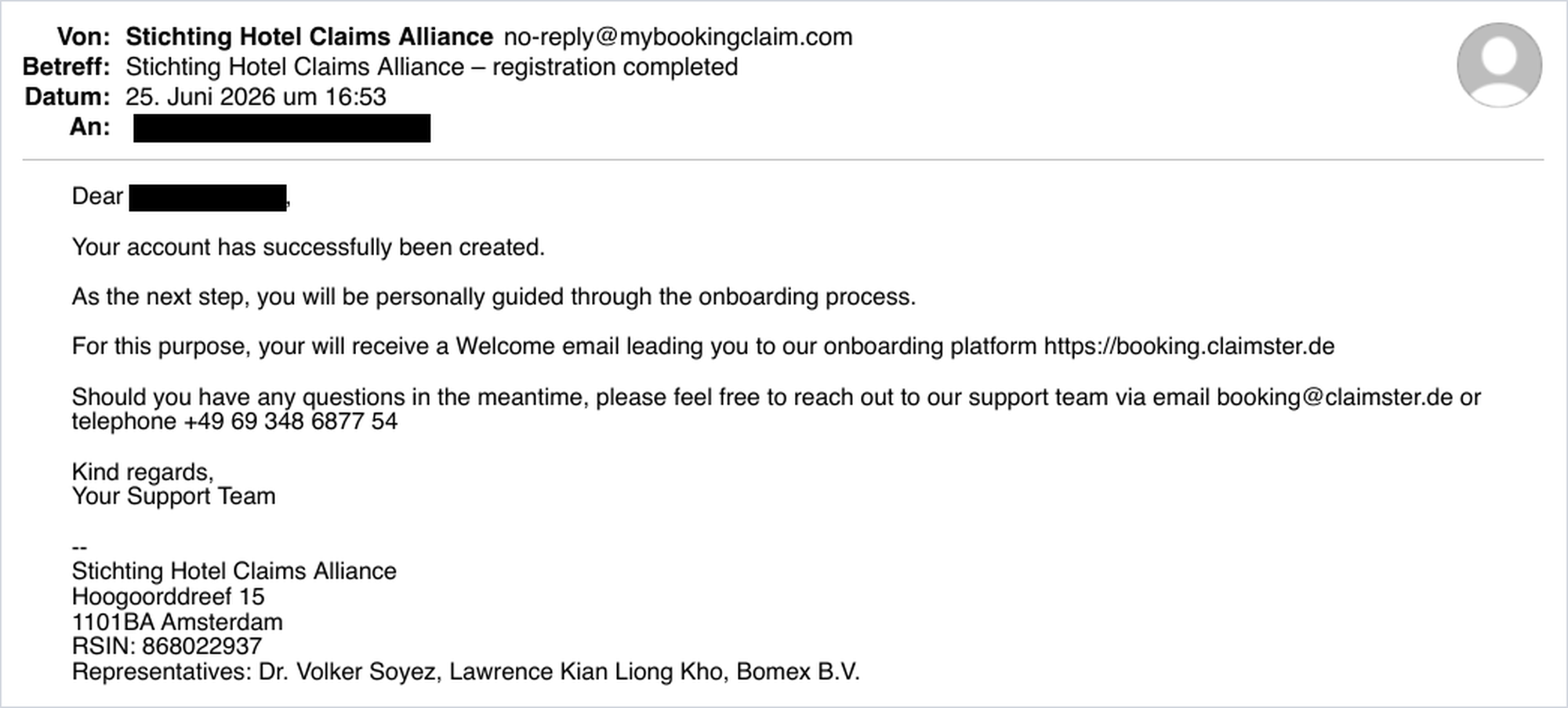
Welcome email — access the onboarding portal
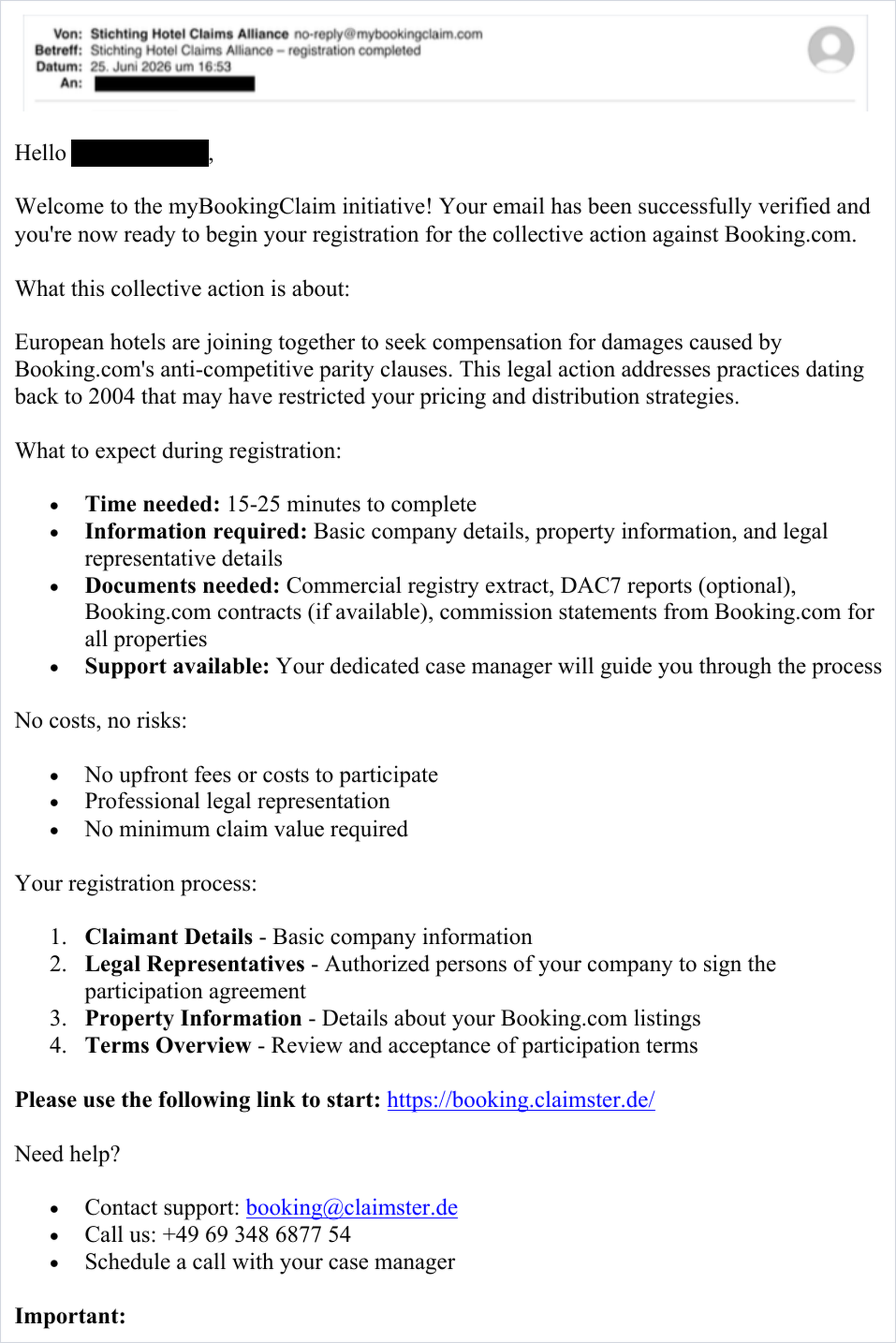
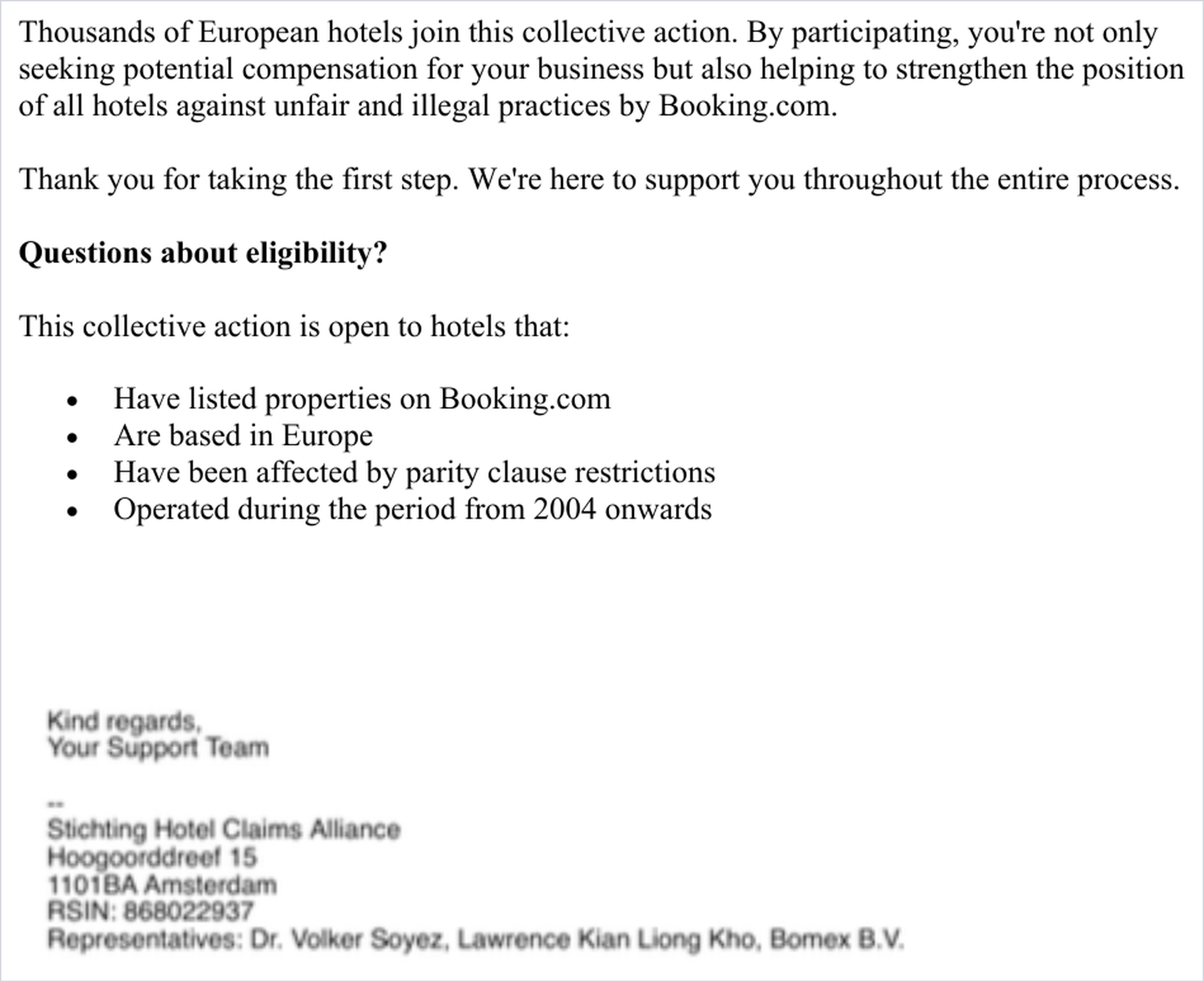
Shortly afterwards, the hotelier receives the Welcome email confirming their email has been verified and containing the link to the onboarding platform at booking.claimster.de. The email sets out what to expect during registration — the time it takes (15–25 minutes), the information and documents required (commercial registry extract, optional DAC7 reports, Booking.com contracts where available, and commission statements for all properties), and the four registration sections. It also restates that there are no costs or risks and that a dedicated case manager is on hand. A second page covers eligibility criteria for participating hotels.
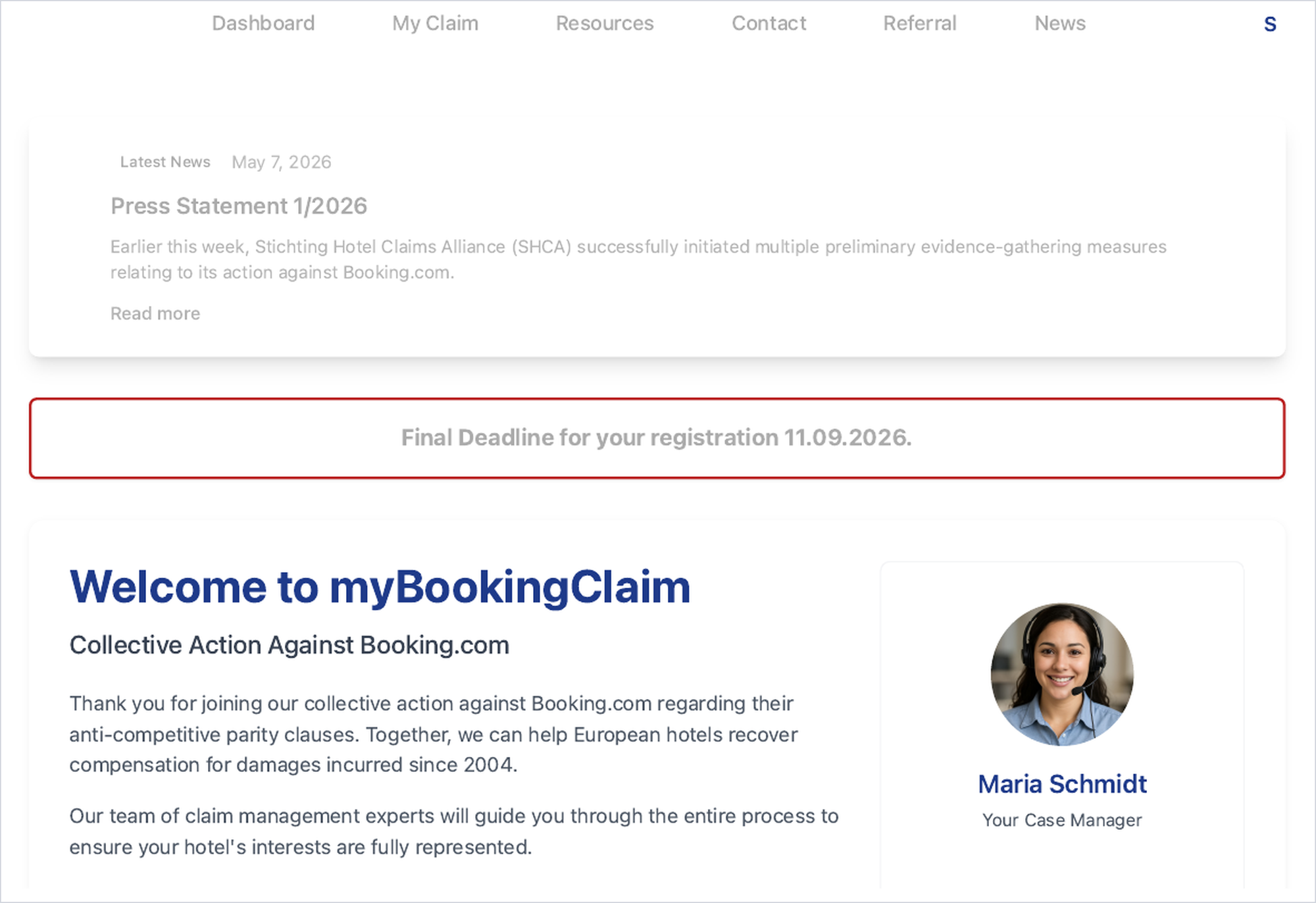
The dashboard. Following the link and signing in, the portal presents a welcome screen with the assigned case manager and the final registration deadline (11.09.2026). A status panel tracks completion rate, open tasks and next steps, so the claimant always knows what remains before submission.
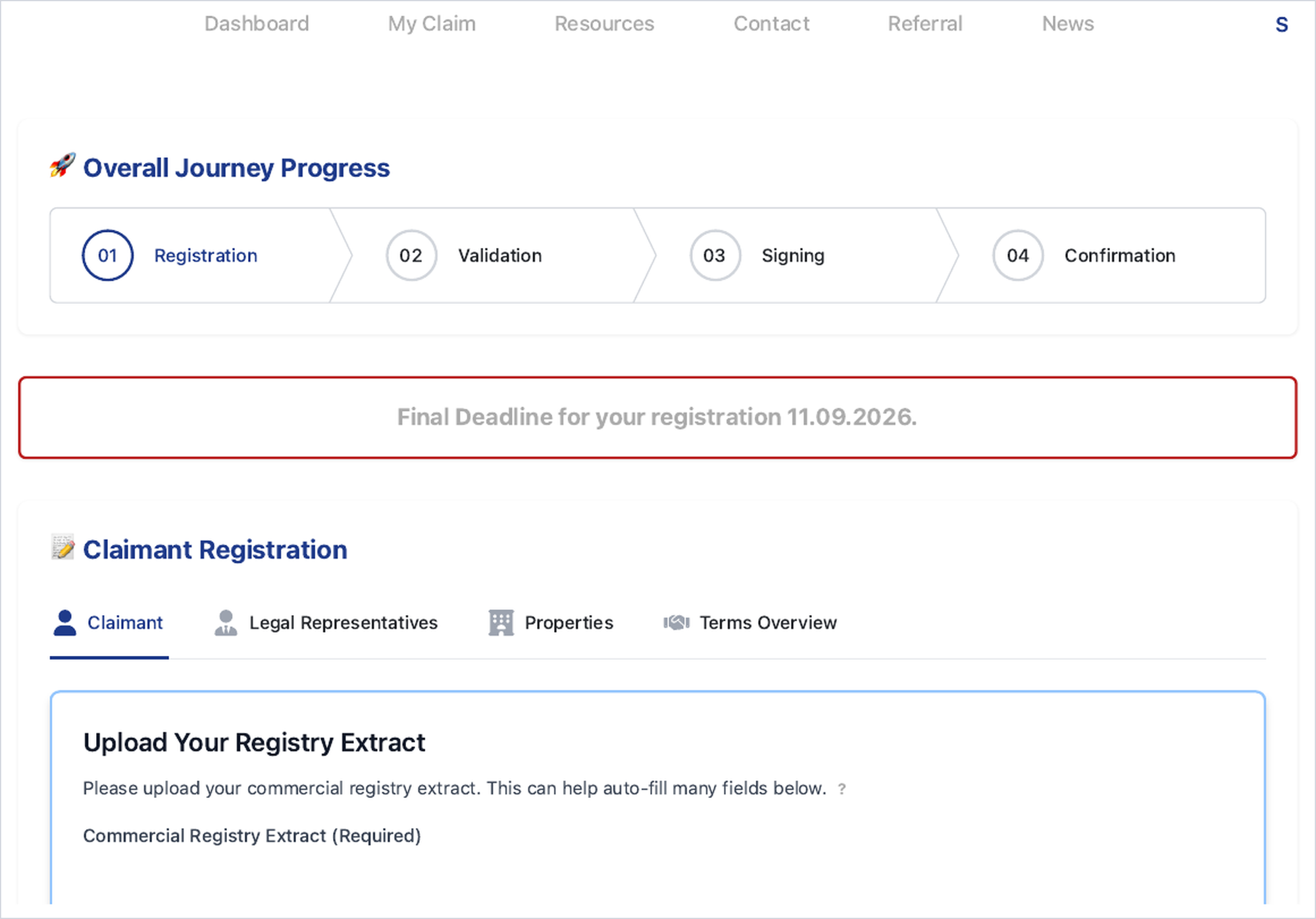
Onboarding — claimant registration (four-step form)
The onboarding form is organised into five tabs: Claimant, Legal Representatives, Properties, Terms and Overview.
a) Claimant
The hotelier provides the company’s official details — company name, legal form, commercial register number and court, registered address, and any relevant Booking.com Legal Entity IDs. Uploading the commercial registry extract can auto-fill many of these fields. A contact person (salutation, first and last name, email) is recorded for the claim. If the hotel is part of a franchise/chain or no longer has account access, this can be indicated instead of entering the Legal Entity IDs.
b) Legal Representatives
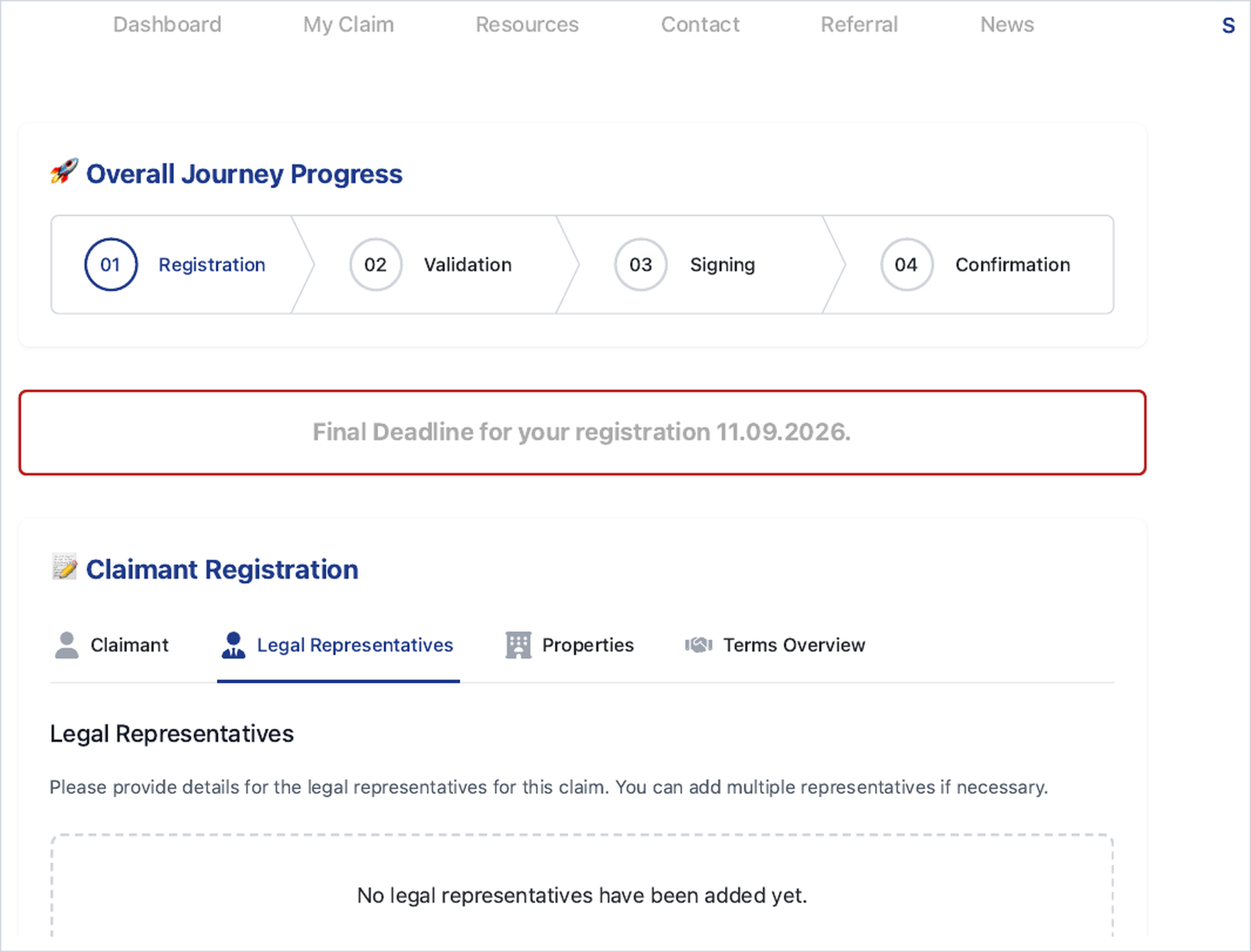
The individuals authorised to represent the company for this claim are added here. Representatives may also be added automatically when a commercial register extract was uploaded in the previous step, reducing manual entry. The form fields are described in detail on the next page.
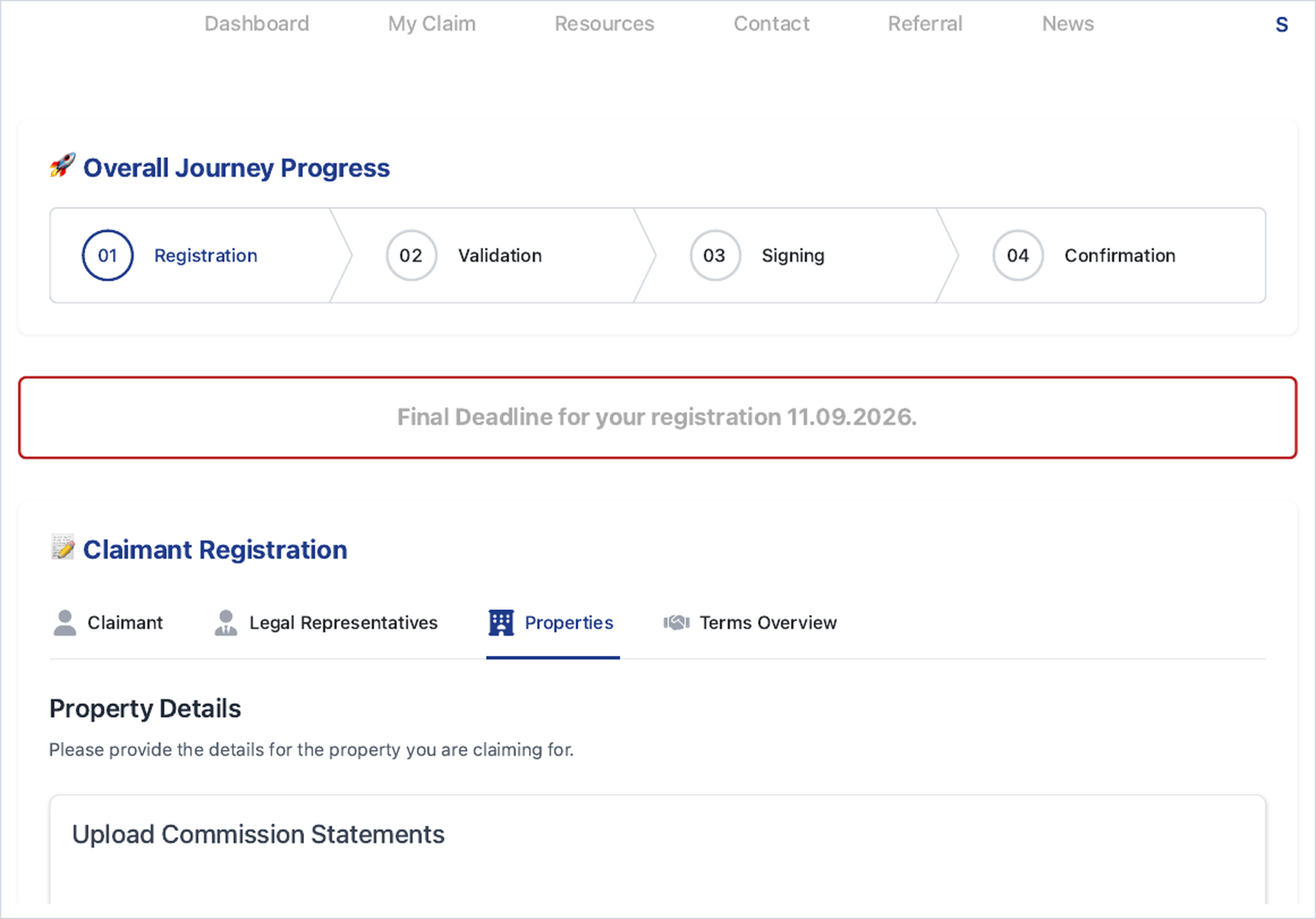
c) Properties
Each Booking.com property managed by the company is added, together with its commission statements (ideally going back to 2004). These statements are used to verify the property and the claim value, and properties can be detected automatically from the uploaded files. Large batches can be supplied as ZIP archives, which are extracted automatically. To complete the onboarding, at least one commission statement covering the period from 2004 to 2024 is required for each property. The full field set is described on the following pages.
The Legal Representatives form in detail
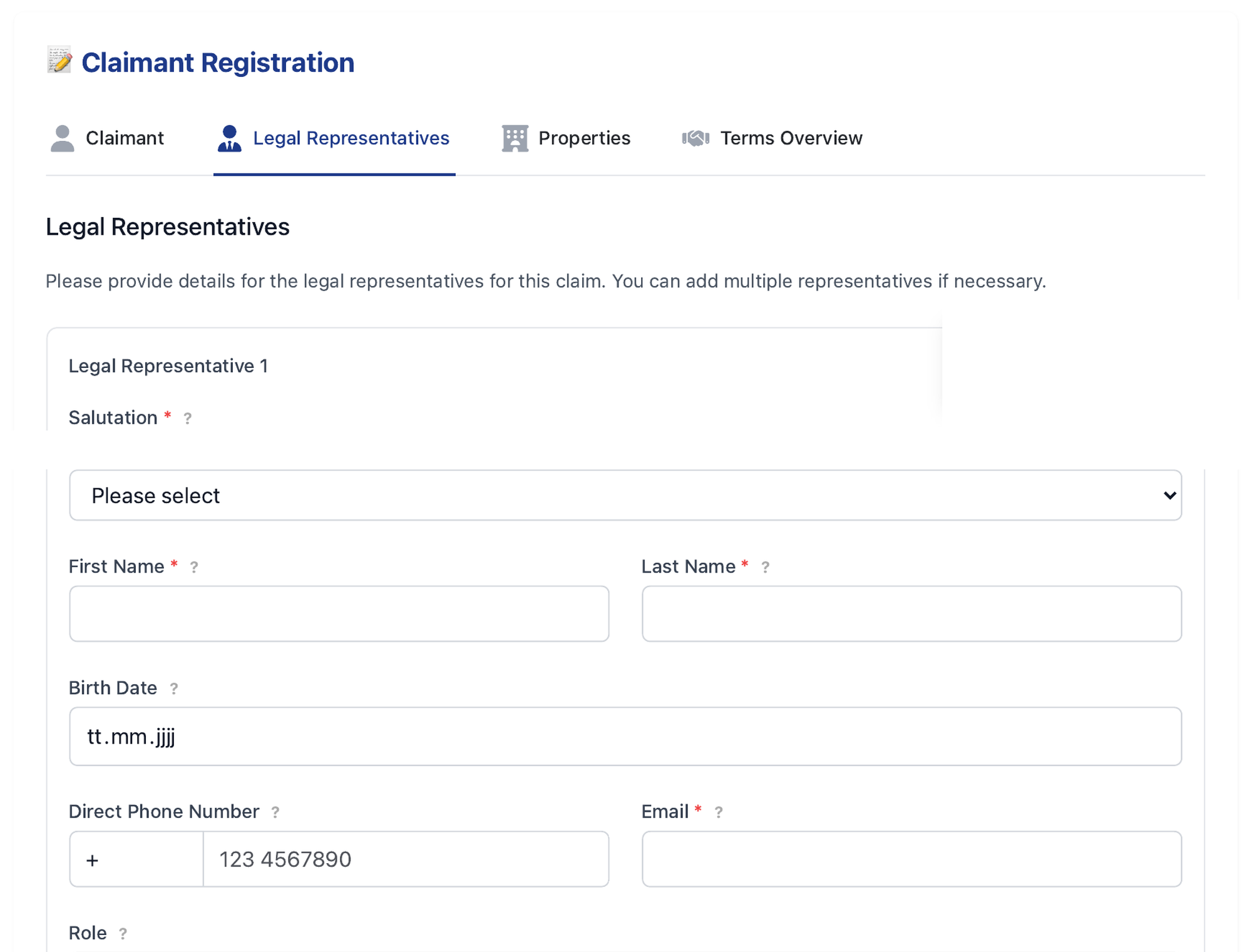
On the Legal Representatives tab the claimant records every person authorised to sign the participation agreement on behalf of the company. Multiple representatives can be added with Add Another Person, which is necessary wherever the rules of representation require joint signing. Each representative is captured with the following fields:
- Salutation (required) — selected from a drop-down.
- First Name and Last Name (both required).
- Birth Date (format tt.mm.jjjj) — helps unambiguously identify the signer.
- Direct Phone Number — an international dialling-code field plus the number.
- Email (required) — the address to which the DocuSign signing invitation is sent, so accuracy here is critical.
- Role — the official title in the original language (e.g. Geschäftsführer, Gérant, Administrateur).
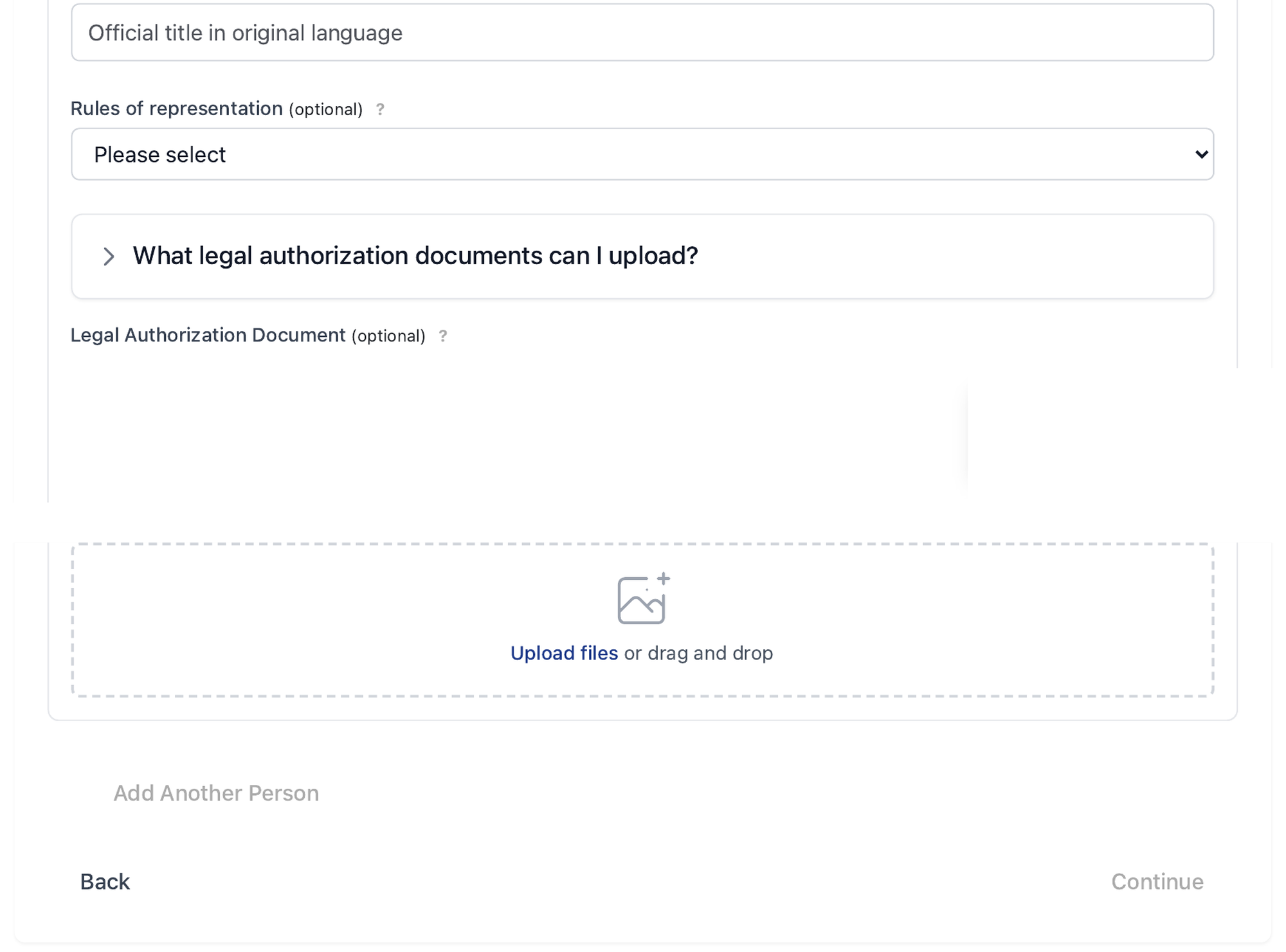
- Rules of representation (optional) — a drop-down indicating whether the person may sign sole or jointly.
- Legal Authorization Document (optional) — upload or drag-and-drop area for a power of attorney or similar proof of signing authority; an inline help panel (“What legal authorization documents can I upload?”) explains acceptable documents.
Where a commercial register extract was uploaded on the Claimant tab, representatives may be pre-populated automatically. Required fields are Salutation, First Name, Last Name and Email; the remaining fields are optional but strongly recommended for a clean signing process.
The Properties form in detail
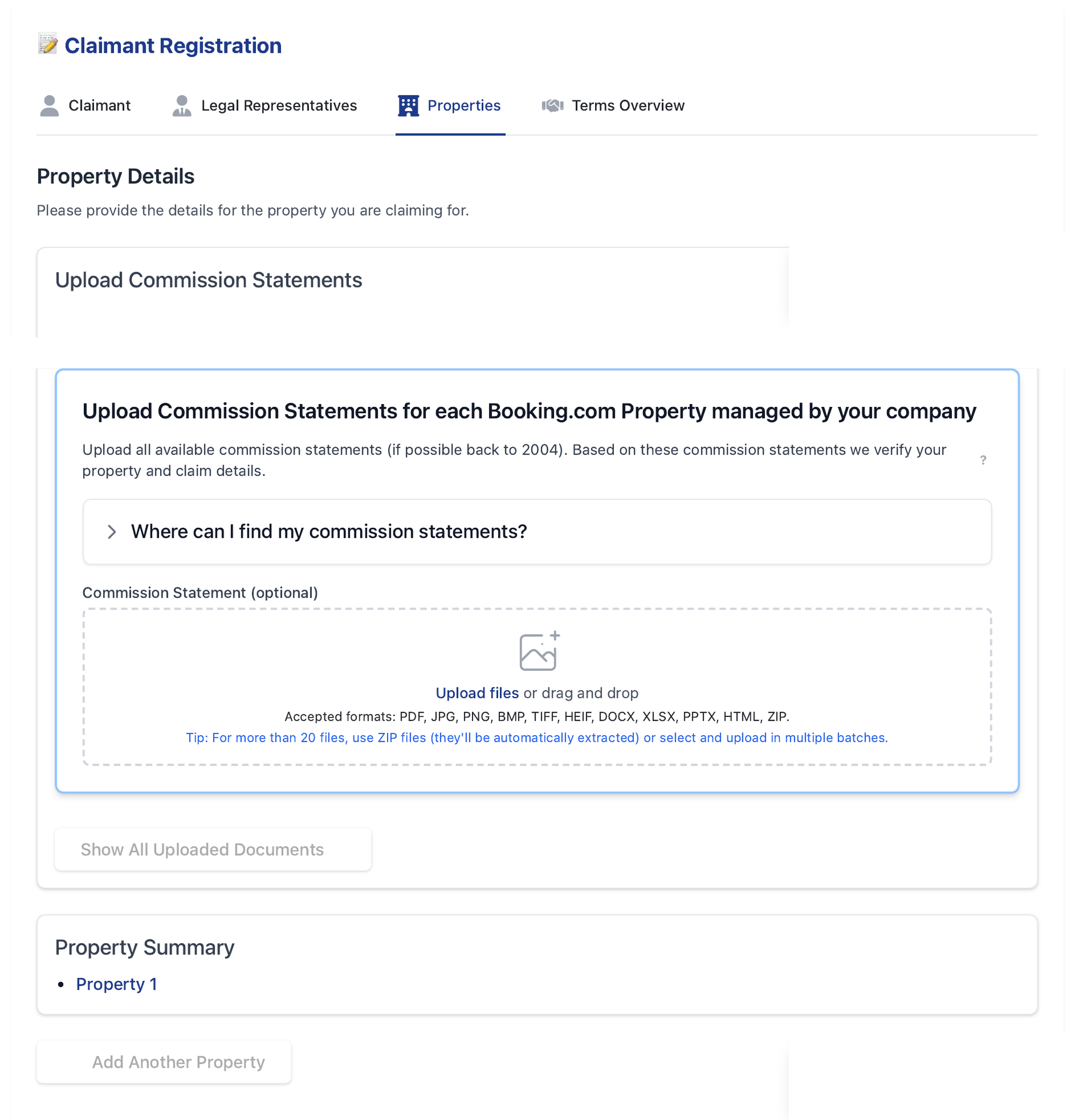
The Properties tab begins with the central Upload Commission Statements area. All available statements should be uploaded (ideally back to 2004); they are used to verify each property and its claim value, and properties can be detected automatically from the files. Accepted formats are PDF, JPG, PNG, BMP, TIFF, HEIF, DOCX, XLSX, PPTX, HTML and ZIP — for more than 20 files, ZIP archives are recommended (they are extracted automatically) or the files can be uploaded in batches. A Property Summary lists the properties added, and Add Another Property registers further listings under the same claim.
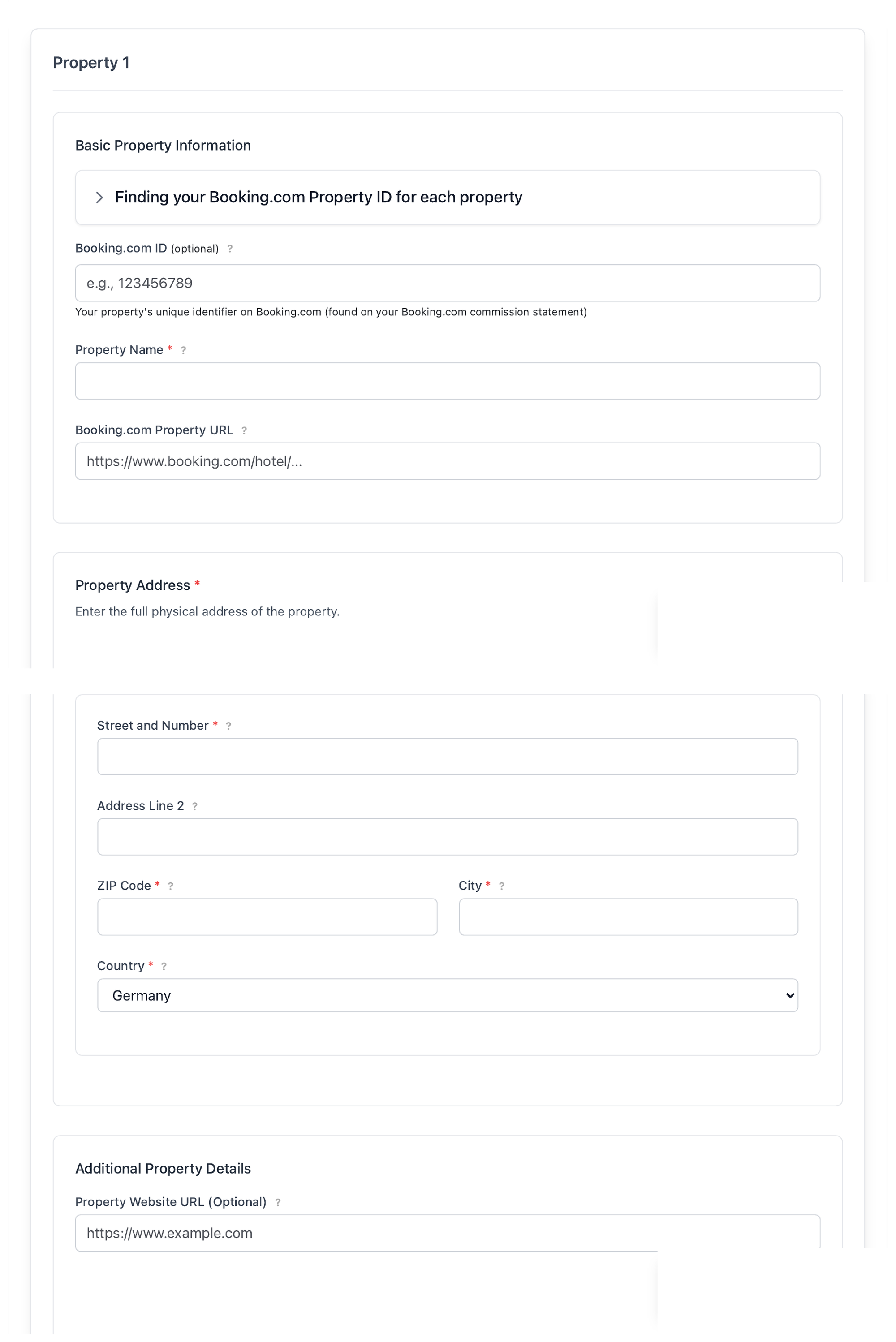
For each property the following details are captured:
- Basic Property Information — Booking.com ID (optional; found on the commission statement), Property Name (required) and Booking.com Property URL.
- Property Address (required) — Street and Number, Address Line 2, ZIP Code, City and Country (defaulting to Germany).
- Additional Property Details — Property Website URL, Number of Rooms and Star Classification / Star Level.
The Properties form in detail (continued)
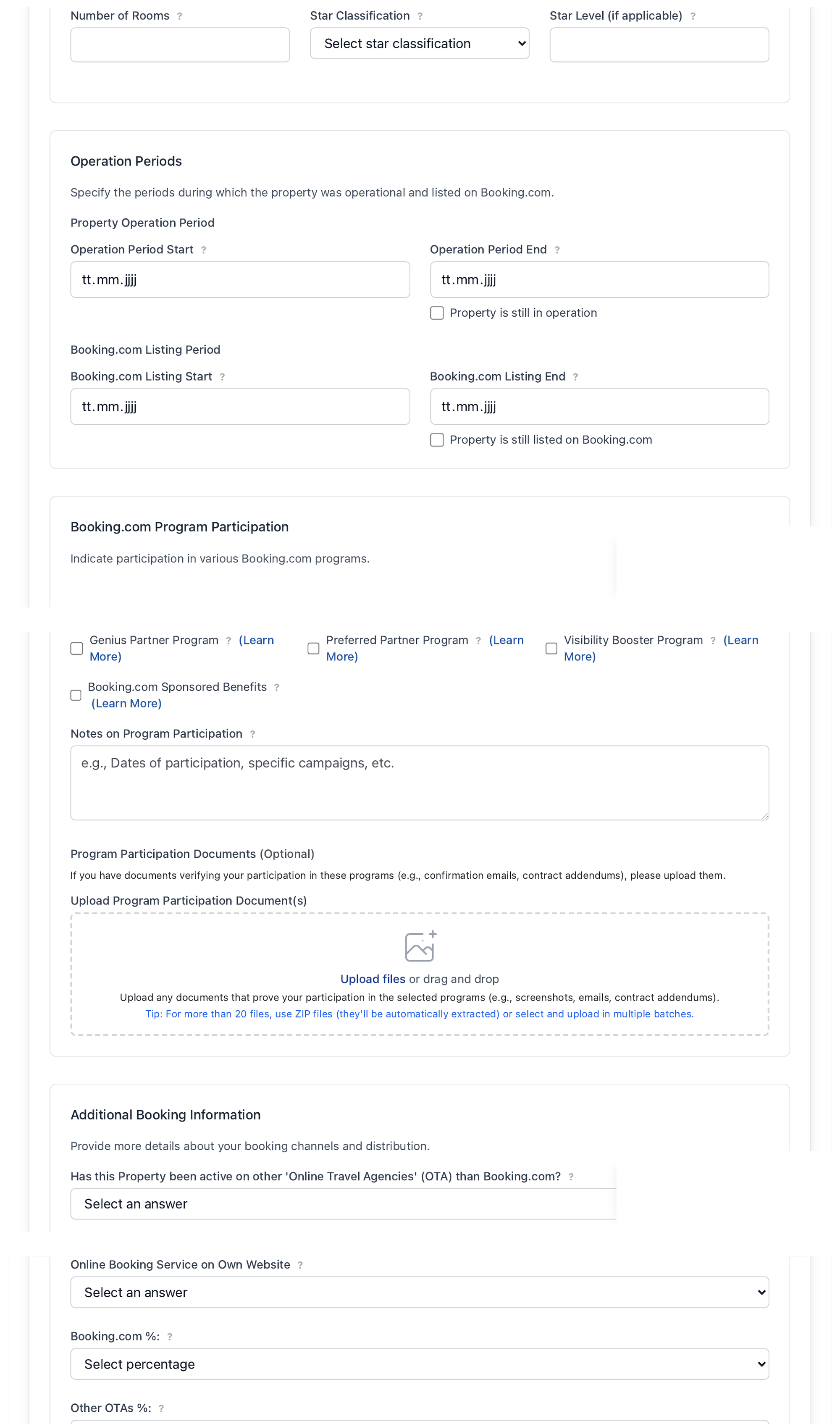
The lower part of each property record covers operating history, Booking.com programmes and distribution mix:
- Operation Periods — the property’s operation start/end dates and Booking.com listing start/end dates, each with a checkbox for “still in operation” / “still listed on Booking.com”
- Booking.com Program Participation — checkboxes for the Genius Partner, Preferred Partner, Visibility Booster and Sponsored Benefits programmes (each with a “Learn More” link), a free-text notes field, and an optional upload for documents evidencing participation.
- Additional Booking Information — whether the property was active on other OTAs besides Booking.com, whether it offered an online booking service on its own website, and the approximate distribution split across Booking.com, other OTAs and the own website
d) Terms — the Participation Agreement
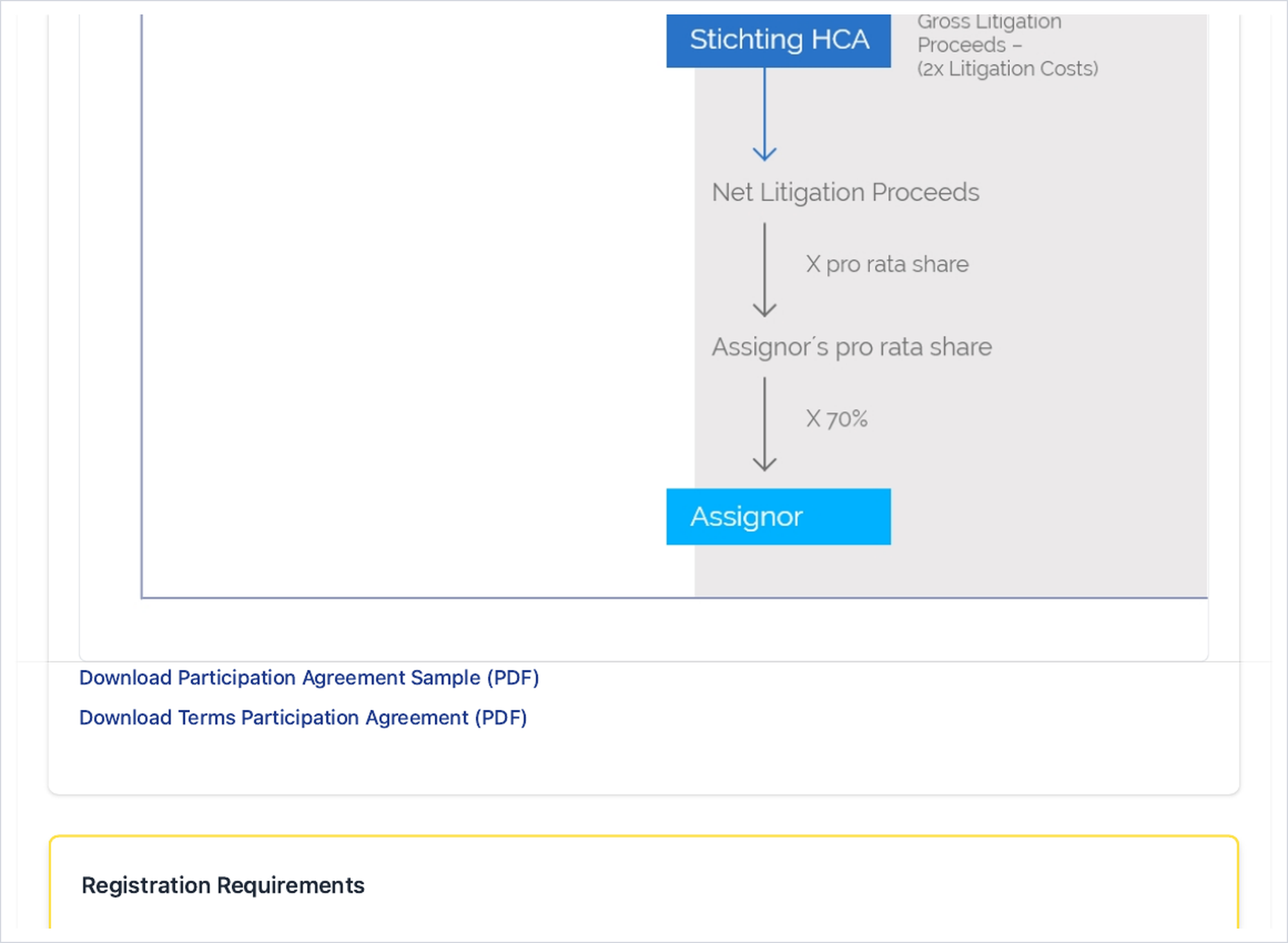
The claimant reviews the key elements of the Participation Agreement. The hotel assigns its damages claim against Booking.com to the Stichting Hotel Claims Alliance and, as a fallback, grants a mandate to pursue the claim on its behalf. Sample and full terms are available to download.
Distribution in case of success: Booking.com pays gross litigation proceeds to the Stichting; two times the litigation costs are deducted to obtain net litigation proceeds; each hotel’s pro-rata share is applied (its principal claim ÷ the aggregated principal claims); and the assignor finally receives 70% of its pro-rata share.
e) Overview & submission
A final requirements check confirms that all mandatory information and documents are present before submission: claimant basic information and documents, contact-person details, Booking.com Legal Entity IDs, legal-representative documents and persons, and property information and documents. Anything missing is flagged with a “Fix Now” prompt; once complete, the claimant selects Confirm and Submit.
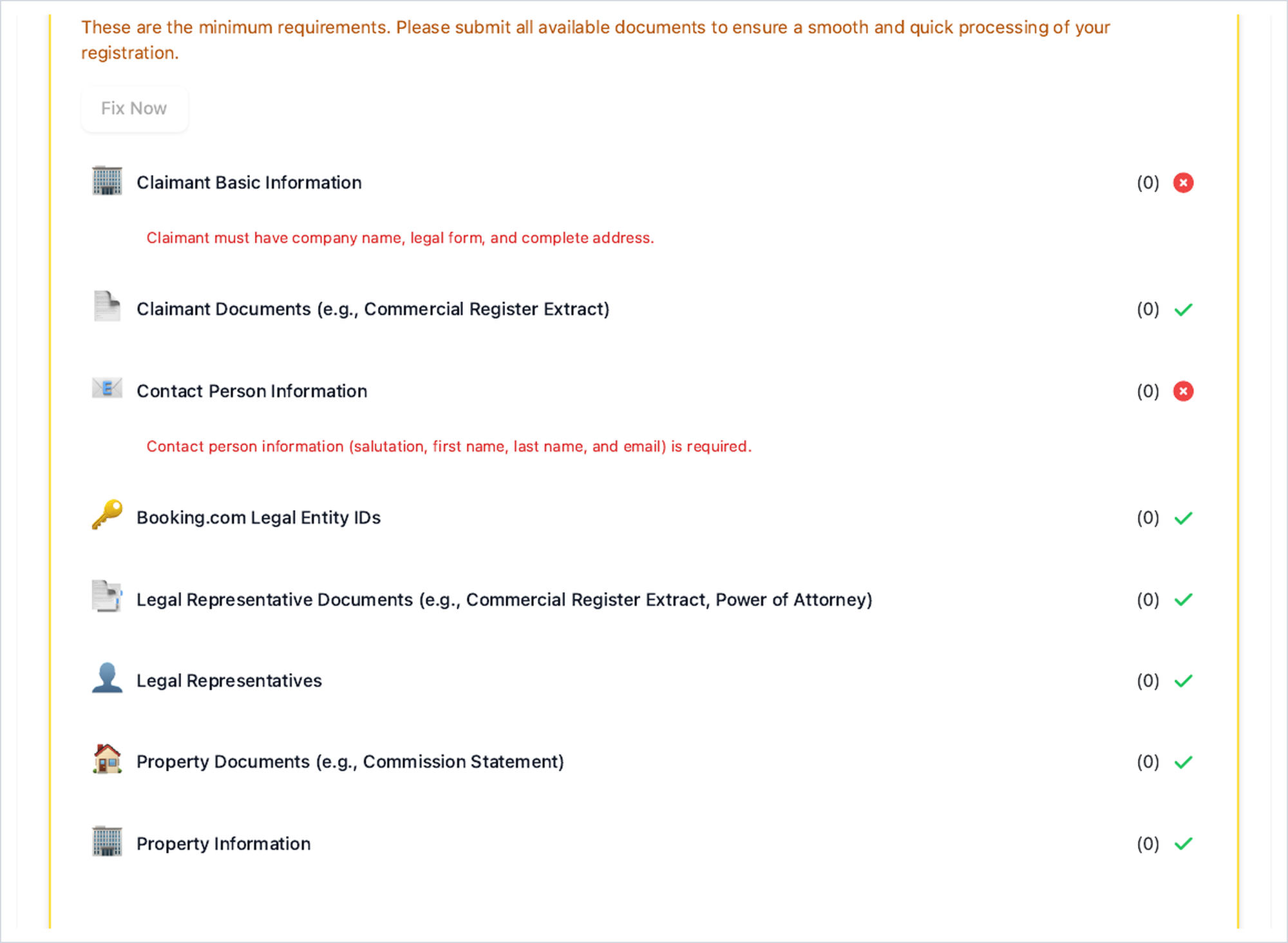
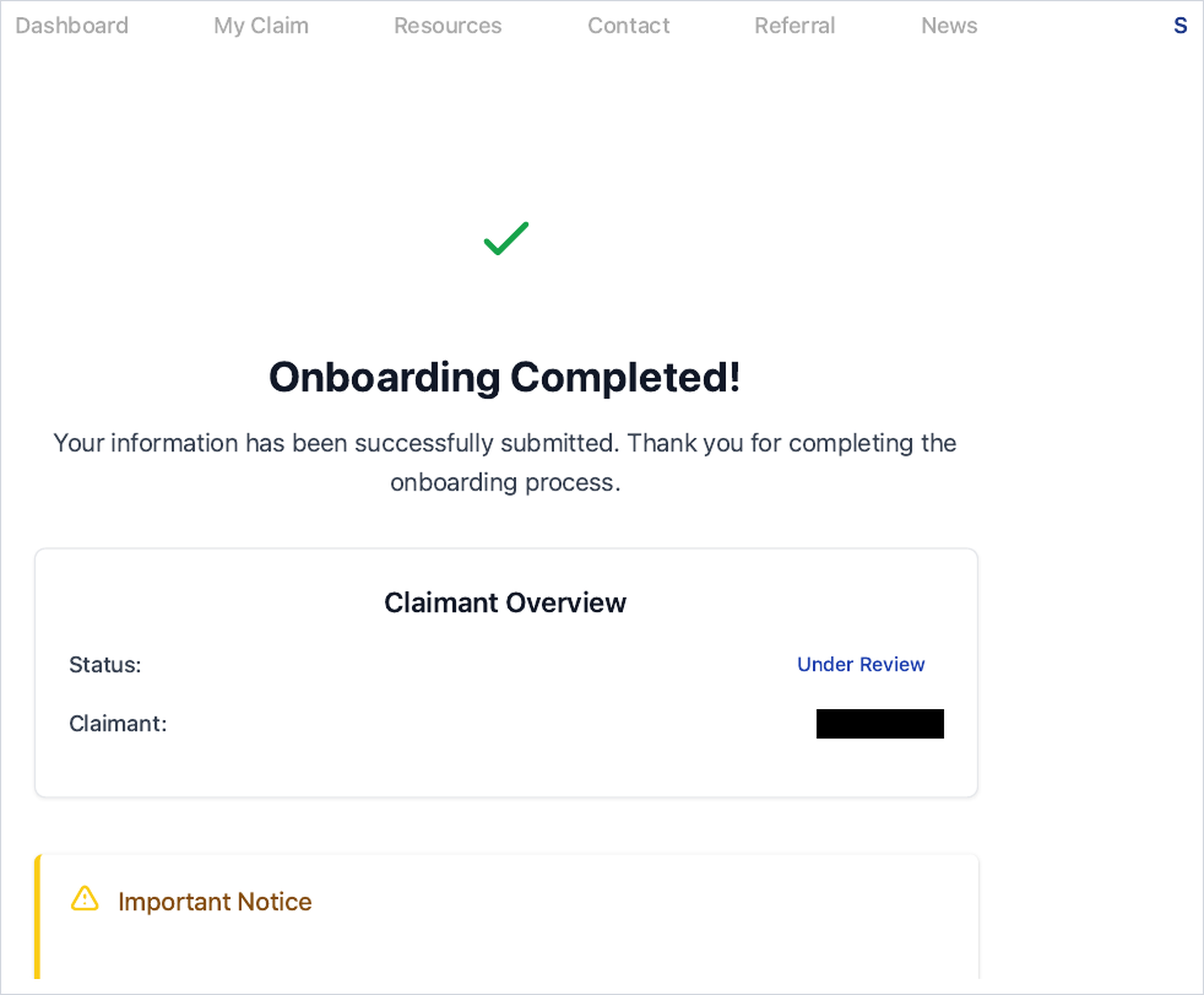
Onboarding completed. After submission the registration is final and locked for direct editing — any later change must be requested through the support team. The claimant’s status moves to Under Review, and a referral option is offered to invite other hoteliers.
Validation — evaluation of your case & documents
The next step is the evaluation of the case and the supporting documents. The team reviews the submitted information to confirm eligibility and verify the claim details. During busy periods this review may take several days to complete.
Signing — participation agreement (DocuSign + wet-ink)
After successful evaluation, the participation agreement is prepared for signature. The signing runs along two parallel tracks and concludes with countersignature by the Stichting:
- The legal representatives of the company first receive a notification, followed by an email containing the DocuSign link to sign the participation agreement electronically.
- DocuSign signing queue: where there is more than one signer, only the first signee receives the automated DocuSign link. Once the first signee completes their signature, the link is automatically sent to the next signee in the queue.
- In parallel, the agreement is sent to the claimant in paper form by postal delivery for hand (wet-ink) signature. Postal delivery of the wet-ink agreement can take some weeks, depending on the national postal service.
- Once the claimant has signed, the agreement is countersigned by the director of the Stichting Hotel Claims Alliance.
- Once countersigned, the claimant receives the fully executed agreement — either via DocuSign or sent by email.
Confirmation — court documents & written confirmation
With the signed and countersigned agreement in place, the final documents for the court proceedings are prepared. A written confirmation is then sent to the claimants. From this point the Stichting asserts the claims and keeps each participating hotel regularly informed about the development of the case — through to payout of compensation in the event of successful enforcement.
Support is available at any stage of registration and onboarding via booking@claimster.de or via phone (+49 69 348 6877 54).